iOS push notifications setup: APNs key, NSE, rich media
iOS push setup in Swift: capabilities, the APNs auth key, provisional permission, interruption levels and a Notification Service Extension for images.
Oricato Team Published 12 min read
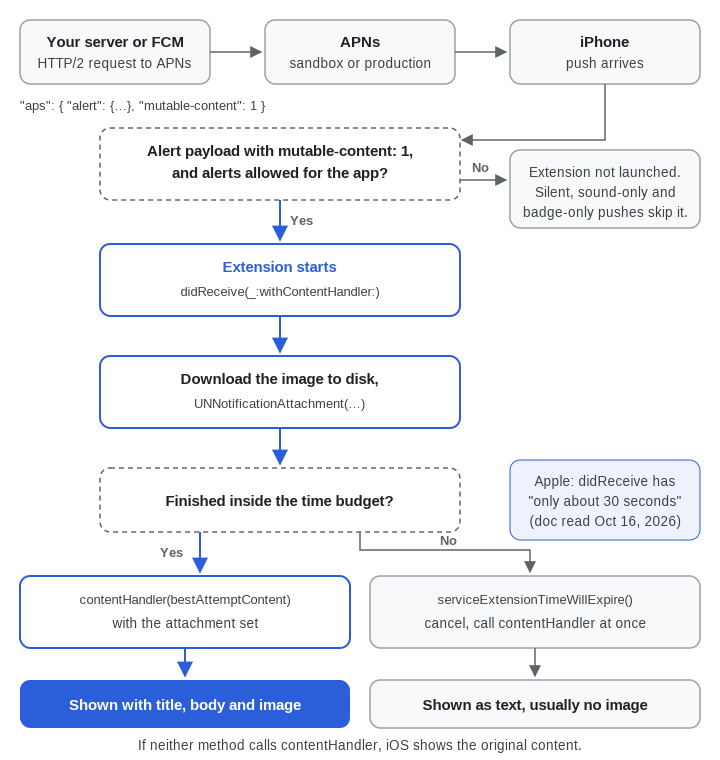
You enabled push in Xcode, the token prints, and still nothing shows on the iPhone. Or the text arrives and the image doesn’t. iOS push usually fails quietly when one of five pieces is wrong: the capability and its entitlement, the APNs key and environment, the authorization you asked for, the interruption level against Focus, or the Notification Service Extension. This guide walks the five in that order, with Swift that follows Apple’s documentation and a drawing of the extension flow.
For the bigger picture, start with how push notifications reach a phone. Terms used below: APNs, Notification Service Extension, provisional authorization and interruption level.
1. Capabilities and entitlements
Push Notifications capability. In your target’s Signing & Capabilities tab, add Push Notifications. Apple’s registration guide says this adds the aps-environment entitlement, and the App ID needs the push service enabled in your developer account. Without the entitlement, didFailToRegisterForRemoteNotificationsWithError fires.
What aps-environment holds. Xcode sets it from the provisioning profile: development with a development profile, production with a production profile, and production for TestFlight builds (APS Environment Entitlement). “Development” and “sandbox” mean the same environment. When a build works from Xcode and stays silent from TestFlight, check this value first (section 7).
<!-- YourApp.entitlements, as Xcode writes it for a development profile -->
<key>aps-environment</key>
<string>development</string>
Background Modes > Remote notifications: only if you need it. Apple requires this mode for background notifications, the content-available: 1 pushes that wake your app without showing anything (Pushing background updates). Apple advises against sending “more than two or three per hour.” Visible alerts don’t need this mode. If you use a push SDK, check its setup docs, since some ask you to turn it on anyway.
Register at every launch and send the token to your server. Apple’s registration guide does this in didFinishLaunchingWithOptions and treats it as its own step, separate from asking permission (section 4). Apple also says never to cache device tokens locally: restores, new devices and OS reinstalls issue new ones.
import UIKit

// Inside your UIApplicationDelegate class.
func application(_ application: UIApplication,
                 didFinishLaunchingWithOptions launchOptions: [UIApplication.LaunchOptionsKey: Any]?) -> Bool {
    UIApplication.shared.registerForRemoteNotifications()
    return true
}

func application(_ application: UIApplication,
                 didRegisterForRemoteNotificationsWithDeviceToken deviceToken: Data) {
    let token = deviceToken.map { String(format: "%02x", $0) }.joined()
    sendDeviceTokenToServer(token)   // your own networking code
}

func application(_ application: UIApplication,
                 didFailToRegisterForRemoteNotificationsWithError error: Error) {
    // Set a flag and try again later (Apple's advice).
}
2. APNs auth key (.p8) vs certificate
APNs accepts a TLS certificate or a token signed with an auth key. Use the key. Per Establishing a token-based connection, tokens are stateless and one key can send for “all or a subset of your company’s apps.” Apple’s account help adds that the signing key “doesn’t expire, but can be revoked.”
What you need from Apple:
| Value | Where it comes from | Used as |
|---|---|---|
.p8 file |
Certificates, Identifiers & Profiles > Keys > + > Apple Push Notification service | Signs the JWT (ES256) |
| Key ID | Shown with the key, 10 characters | JWT header kid |
| Team ID | Your developer account, 10 characters | JWT claim iss |
| Bundle ID | Your App ID | apns-topic header |
Store the .p8 safely: Apple’s key help page says it “is not saved in your developer account” and can’t be downloaded again. Creating keys needs the Account Holder or Admin role.
Key type and environment. When you create an APNs key, the key help page has you “choose the environment configuration and type of key (Team Scoped or Topic Specific).” As of Oct 16, 2026, Apple’s token-based connection guide describes the two types like this:
| Key type | What it covers | Limit Apple states |
|---|---|---|
| Team scoped | “all existing and new topics in the team,” restricted “to either Sandbox or Production” | “a maximum of two keys” per environment |
| Topic specific | Chosen topics (bundle IDs) “within a single environment” | 200 keys for Sandbox and 200 for Production, “up to 400 topics per topic-based key” |
The same guide says existing team-scoped keys that work in both environments “will continue to be supported,” while recommending separate environment-specific keys. The account help page quoted above still says the signing key “works for both the development and production environments,” which fits those older dual-environment keys but not the environment-specific ones. So check what your key covers before you rely on it: tokens from a key restricted to one environment are rejected in the other, and APNs answers with 403 BadEnvironmentKeyIdInToken, “The key ID in the provider token doesn’t match the environment” (response codes).
If you send to APNs yourself (api.sandbox.push.apple.com:443 or api.push.apple.com:443), refresh the JWT no more than once every 20 minutes and no less than once every 60, per the token guide. An iat more than an hour old returns 403 ExpiredProviderToken; refreshing faster returns 429 TooManyProviderTokenUpdates. Our APNs token authentication guide builds the JWT and the HTTP/2 request step by step.
3. Using APNs through FCM
If you also ship Android, you probably send through Firebase Cloud Messaging, which forwards to APNs. Sections 1 and 2 still apply; FCM only takes over the provider side.
Upload the key. In the Firebase console, open Project settings and the Cloud Messaging tab, find APNs authentication key under your iOS app configuration, upload the .p8 and enter its Key ID (Firebase iOS client setup, page last updated 2026-10-15). You can upload a development key, a production key or both; “at least one is required.” If your Apple keys are environment-specific, upload one for each environment you ship to.
Method swizzling. By default the FCM SDK swizzles to map your APNs token to the FCM token and to capture message analytics. Setting FirebaseAppDelegateProxyEnabled to NO in Info.plist turns that off. With swizzling off, or in a SwiftUI app, pass the token yourself from your app delegate:
import FirebaseMessaging
import UIKit

// Inside your UIApplicationDelegate class.
func application(_ application: UIApplication,
                 didRegisterForRemoteNotificationsWithDeviceToken deviceToken: Data) {
    Messaging.messaging().apnsToken = deviceToken
}
As of the Oct 15, 2026 version of that page, messaging(_:didReceiveRegistrationToken:) sits under an “Access the registration token (deprecated)” heading, with a note that the method “will be removed in a future release.” Firebase points instead to Firebase Installation IDs: set FirebaseMessagingInstallationIdEnabled to YES in Info.plist and read the ID in messaging(_:didReceiveRegistration:). If your server stores FCM tokens today, plan that migration.
On the server, iOS fields go in message.apns. Per the HTTP v1 reference (updated 2026-09-08), apns.payload holds aps plus custom keys, and FCM defaults apns-priority to 10 and apns-expiration to 30 days. Flutter teams: the Flutter push guide covers the Dart side.
4. Asking for permission
requestAuthorization options
Asking permission is a separate step from the token registration in section 1. The standard request shows the system prompt once; later calls return the stored answer without prompting. Apple suggests asking in context, such as after a person schedules a first task, not on first launch (Asking permission). In a fictional language-learning app, that’s after the first Spanish lesson, when someone picks a reminder time. More in our permission prompt guide.
import UserNotifications

/// Returns true if the person allowed notifications.
func askForNotifications() async -> Bool {
    let center = UNUserNotificationCenter.current()
    do {
        return try await center.requestAuthorization(options: [.alert, .sound, .badge])
    } catch {
        // Handle the error here.
        return false
    }
}
This function doesn’t call registerForRemoteNotifications(). The app delegate in section 1 already registers at every launch, as Apple’s registration guide shows, so the token reaches your server whatever the person answers here. Use the returned value to “enable or disable features based on the authorization,” as Apple’s sample comment puts it, for example by hiding a reminder-time picker after a no.
Leave out .timeSensitive: Apple marks it deprecated since iOS 15 with “Use time-sensitive entitlement” (section 5). .criticalAlert needs Apple’s Critical Alerts entitlement.
Provisional authorization
Add .provisional and iOS grants authorization at once, with no prompt. Notifications then arrive quietly, in Notification Center history only, with Keep and Turn Off buttons. Keep offers Deliver Immediately or, if the person has Scheduled Summary turned on, Deliver in Scheduled Summary. Either way the notifications stay quiet until the person changes their settings. Until they choose, the status reads .provisional.
let center = UNUserNotificationCenter.current()
do {
    try await center.requestAuthorization(options: [.alert, .sound, .badge, .provisional])
} catch {
    // Handle errors from requestAuthorization.
}
Provisional fits notifications that speak for themselves: a recipe app’s “Tonight: 20-minute miso salmon”, or a Japanese news digest with three headlines. It fits poorly when the value is the interruption, like a workout timer. Apple’s page doesn’t say how a later standard request behaves under provisional status, so test that path before building onboarding on it.
Reading settings later
People change settings, so read the current state rather than what you stored at install. Since iOS 15, timeSensitiveSetting and scheduledDeliverySetting also tell you whether time-sensitive alerts can break through and whether you land in the summary.
let settings = await UNUserNotificationCenter.current().notificationSettings()

switch settings.authorizationStatus {
case .authorized, .provisional, .ephemeral:
    reportToServer(status: settings.authorizationStatus,
                   inSummary: settings.scheduledDeliverySetting == .enabled,
                   timeSensitiveAllowed: settings.timeSensitiveSetting == .enabled)
case .denied, .notDetermined:
    reportToServer(status: settings.authorizationStatus, inSummary: false, timeSensitiveAllowed: false)
@unknown default:
    break
}
Run it whenever the app becomes active and send changes to your server, so audience counts match what people allow.
5. Interruption levels and Focus
Since iOS 15, an interruption level decides how loud a notification is and whether it gets past Focus and Notification Summary. Set it with the interruption-level key in aps (payload keys) or interruptionLevel on local content.
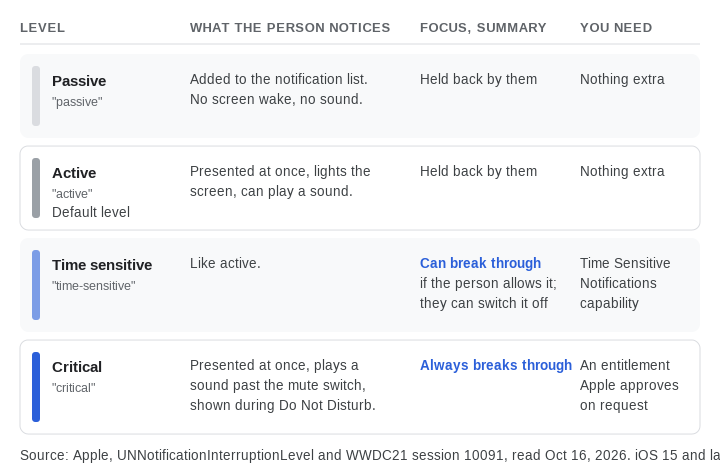
passive: added to the notification list without waking the screen or playing a sound. WWDC21 session 10091 suggests it for things that “should be seen eventually.”active: the default. Presented immediately, lights the screen, can play a sound, and “won’t break through system notification controls.”time-sensitive: like active, but “can break through system controls such as Notification Summary and Focus.” The person can turn this off per app. It requires the Time Sensitive Notifications capability in Xcode, per the same session.critical: plays a sound past the mute switch and is presented even during Do Not Disturb. It needs an entitlement you request from Apple through a form.
{
  "aps": {
    "alert": {
      "title": "Dein Lauf beginnt in 10 Minuten",
      "body": "Intervalltraining, 25 Minuten. Schuhe an."
    },
    "interruption-level": "time-sensitive",
    "relevance-score": 0.8,
    "sound": "default"
  }
}
That’s a German reminder from a fictional fitness app for a run the person booked. Time-sensitive exists for events like that, not for a weekly feature roundup. Apple’s notification guidelines warn that repeat notifications can make people “turn off all notifications from your app.”
relevance-score (0 to 1) ranks your notifications; the highest is featured in the summary. The WWDC session adds that media attachments improve the chance of being featured, which brings us to the extension.
6. Notification Service Extension for images and tracking
Apple’s payload doc (read Oct 16, 2026) caps regular remote notifications at 4 KB (4,096 bytes). An image doesn’t fit, so you send a URL and a Notification Service Extension (NSE) downloads it before the notification shows. The same hook decrypts content or records arrival. This section covers the iOS side; the rich push notifications guide compares images, action buttons and deep links across Android and iOS.
Add one with File > New > Target > Notification Service Extension. It ships as a separate bundle inside your app with its own bundle ID, for example com.example.lingo.NotificationService.
mutable-content
iOS runs your extension only when both conditions hold (Modifying content):
apscontains"mutable-content": 1.apscontains analertwith a title, subtitle or body.
Alerts must also be enabled for your app; silent, sound-only and badge-only pushes never reach the extension. Through FCM, a French word-of-the-day card from the language app looks like this, with a custom image_url key next to aps for the extension below:
{
  "message": {
    "token": "FCM_REGISTRATION_TOKEN",
    "notification": {
      "title": "Mot du jour : « flâner »",
      "body": "Se promener sans but. Trois exemples vous attendent."
    },
    "apns": {
      "payload": {
        "aps": { "mutable-content": 1 },
        "image_url": "https://cdn.example.com/cards/flaner.jpg"
      },
      "fcm_options": { "image": "https://cdn.example.com/cards/flaner.jpg" }
    }
  }
}
fcm_options.image is Firebase’s documented image field for Apple devices, and its Objective-C NSE sample finishes with [[FIRMessaging extensionHelper] populateNotificationContent:withContentHandler:] (get started). The custom key is only for the hand-written extension below, which follows Apple’s pattern and works with or without FCM.
import UserNotifications

final class NotificationService: UNNotificationServiceExtension {
    private var contentHandler: ((UNNotificationContent) -> Void)?
    private var bestAttemptContent: UNMutableNotificationContent?
    private var downloadTask: URLSessionDownloadTask?

    override func didReceive(_ request: UNNotificationRequest,
                             withContentHandler contentHandler: @escaping (UNNotificationContent) -> Void) {
        self.contentHandler = contentHandler
        bestAttemptContent = request.content.mutableCopy() as? UNMutableNotificationContent

        guard let content = bestAttemptContent,
              let urlString = content.userInfo["image_url"] as? String,
              let url = URL(string: urlString), url.scheme == "https" else {
            contentHandler(request.content)   // nothing to add: deliver as sent
            return
        }

        downloadTask = URLSession.shared.downloadTask(with: url) { [weak self] location, _, _ in
            guard let self, let content = self.bestAttemptContent else { return }
            if let location {
                // The file must be on disk, with an extension the system recognizes.
                let ext = url.pathExtension.isEmpty ? "jpg" : url.pathExtension
                let file = FileManager.default.temporaryDirectory
                    .appendingPathComponent(UUID().uuidString)
                    .appendingPathExtension(ext)
                if (try? FileManager.default.moveItem(at: location, to: file)) != nil,
                   let attachment = try? UNNotificationAttachment(identifier: "image", url: file, options: nil) {
                    content.attachments = [attachment]
                }
            }
            self.finish(with: content)
        }
        downloadTask?.resume()
    }

    override func serviceExtensionTimeWillExpire() {
        downloadTask?.cancel()
        if let content = bestAttemptContent { finish(with: content) }
    }

    private func finish(with content: UNNotificationContent) {
        // Call the handler exactly once, whichever path gets here first.
        guard let handler = contentHandler else { return }
        contentHandler = nil
        handler(content)
    }
}
Apple calls serviceExtensionTimeWillExpire() on a separate thread, so in production protect the finish(with:) handoff with a lock or serial queue. Images must be JPEG, GIF or PNG up to 10 MB (UNNotificationAttachment); Firebase caps notification images at 1 MB on its side.
The time budget and serviceExtensionTimeWillExpire
Apple’s Modifying content page, read Oct 16, 2026, says didReceive(_:withContentHandler:) “has only about 30 seconds” to call the completion handler. Treat that as a ceiling, not a target. When it runs out, iOS calls serviceExtensionTimeWillExpire() and you must “return whatever you can to the system immediately.”
If neither method calls the handler, the person sees the original content. Apple’s reference suggests fallback text saying an image is still downloading; we’d rather keep the original text and drop the image, which is a preference, not an Apple rule. To stay inside the budget, serve images sized for a notification, not the 4,000-pixel original.
Sharing data with the app via App Groups
The extension can’t read your app’s container. For shared state (a badge counter, a delivery log to upload later, a decryption key), add the same App Group to both targets. Apple’s Configuring app groups says a container ID “must begin with group.” and that each developer account “can register a maximum of 1,000 app groups.”
// Same code in the app and in the extension.
let shared = UserDefaults(suiteName: "group.com.example.lingo")
let delivered = (shared?.integer(forKey: "deliveredCount") ?? 0) + 1
shared?.set(delivered, forKey: "deliveredCount")
This is where “delivered” tracking lives: for alert pushes, the extension is the one piece of your code that runs on arrival while the app isn’t in the foreground. It fires only with mutable-content: 1, so read it as “delivered, for pushes the extension saw.”
7. Testing in sandbox vs production
A device token belongs to one APNs environment. Xcode builds with a development profile get sandbox tokens; TestFlight and App Store builds get production tokens. Send one to the wrong host and APNs replies 400 BadDeviceToken, whose description tells you to check that “the token matches the environment.”
Apple’s Push Notification Console separates “my setup is broken” from “my server is broken.” Per that page, read Oct 16, 2026:
- You can send a test to a device token, and the Get cURL Command button turns it into a command you can rerun against APNs from a terminal. The console keeps a history of tests sent from it for 30 days.
- In development, APNs returns an
apns-unique-idwith each response. Paste it into the Delivery Log to see what happened to that push. Apple says delivery logs “are only available in the development environment,” for “up to seven days after you send the notification.” - The Device Token Validator checks a token against a bundle ID, and the JWT Validator checks a token’s signature, Team ID and expiration.
- “In the APNs production environment, only team members with the admin role can send push notifications.” Everyone on the team can send to development.
Firebase’s console has its own “Send test message” flow, which takes an FCM token or Installation ID and expects the app in the background (get started). Test in that order: Apple’s console, then FCM, then your server, adding one moving part per step. If all three pass and the phone stays quiet, continue with the troubleshooting checklist.
8. Common failures
| Symptom | Likely cause | Where to look |
|---|---|---|
didFailToRegisterForRemoteNotificationsWithError fires |
Push capability or aps-environment missing from the signed build |
Signing & Capabilities, provisioning profile |
| Works from Xcode, silent in TestFlight | Sandbox token stored, production build sending, or the reverse | 400 BadDeviceToken; store the environment with each token |
400 DeviceTokenNotForTopic |
apns-topic isn’t the bundle ID the token belongs to |
Bundle ID of the app vs the extension |
403 BadEnvironmentKeyIdInToken |
APNs key restricted to the other environment | Key configuration in your developer account; key uploaded to Firebase |
403 ExpiredProviderToken / 429 TooManyProviderTokenUpdates |
JWT older than 1 hour, or refreshed more often than every 20 minutes | Your token cache |
410 Unregistered |
App deleted or token inactive for the topic | Stop sending to that token |
| FCM tokens missing with swizzling off or in SwiftUI | apnsToken never set |
didRegisterForRemoteNotificationsWithDeviceToken |
| Arrives only in Notification Center, no banner | Provisional authorization, passive level, or delivery in Scheduled Summary |
notificationSettings() |
| Doesn’t get past Focus | time-sensitive without the capability, or the person turned it off |
Xcode capability; timeSensitiveSetting |
| Text shows, image doesn’t | No mutable-content: 1, handler never called, timeout, or unsupported file |
Extension logs in Console.app; attachment type and size |
413 PayloadTooLarge |
Payload over the documented limit | Move content behind a URL the extension fetches |
Below its error table, Apple’s response codes page says: “Don’t retry notification responses with the error code BadDeviceToken, DeviceTokenNotForTopic, Forbidden, ExpiredToken, Unregistered, or PayloadTooLarge.” For 5xx responses, the same page says you can retry “after 15 minutes,” optionally with back-off, and you can retry TooManyRequests “with a delay.” Most other 4xx errors can be retried once you fix the cause named in reason.
9. What Oricato does here
Oricato is a push notification platform for app studios (Early access · launching soon). This guide covers mobile push; web push and email (Early access) are separate channels. The Oricato iOS SDK is a Swift package for iOS 13+ with no third-party dependencies, and it doesn’t replace the steps above: your app still gets its token from Firebase Messaging, Oricato sends through FCM, and the APNs key still goes to Firebase.
What the SDK adds, as its README documents:
- An NSE helper. Add the
OricatoPushNotificationServiceproduct to your extension target and subclassOricatoNotificationService. It downloads the image (https only, up to 10 MB), attaches it, and shows the text notification if iOS ends the time budget. No App Group is needed except for badge increase, and an existing extension can hand Oricato pushes toOricatoNotificationServiceHelper. - An SDK-confirmed Delivered receipt. Oricato always sends
mutable-content: 1, and the extension reportsdeliveredfor pushes from sampled devices, so reports separate Sent, Delivered and Opened. Without the extension, only foreground arrivals count as delivered. - Permission reporting. The SDK re-reads permission, including
provisional, whenever the app becomes active and reports changes.
If you’d rather keep your own extension, everything in sections 1 to 8 still applies. The full SDK reference is under SDKs.
Request early access to try it with your team.
Sources
All pages were opened and read on Oct 16, 2026. Apple’s documentation pages don’t display a last-updated date. Firebase dates are the “Last updated” line on each page.
- Apple: Registering your app with APNs
- Apple: APS Environment Entitlement
- Apple: Pushing background updates to your App
- Apple: Establishing a token-based connection to APNs
- Apple Developer Account Help: Communicate with APNs using authentication tokens
- Apple Developer Account Help: Create a private key to access a service
- Apple: Sending notification requests to APNs
- Apple: Handling notification responses from APNs
- Apple: Asking permission to use notifications
- Apple: requestAuthorization(options:completionHandler:)
- Apple: UNAuthorizationOptions.timeSensitive (deprecated)
- Apple: UNNotificationInterruptionLevel
- Apple: Critical Alerts entitlement
- Apple WWDC21 session 10091: Send communication and Time Sensitive notifications
- Apple: Generating a remote notification
- Apple: Modifying content in newly delivered notifications
- Apple: UNNotificationServiceExtension
- Apple: serviceExtensionTimeWillExpire()
- Apple: UNNotificationAttachment
- Apple: Configuring app groups
- Apple: Testing notifications using the Push Notification Console
- Apple: Human Interface Guidelines, Notifications
- Firebase: Set up a Firebase Cloud Messaging client app on Apple platforms (last updated 2026-10-15)
- Firebase: Get started with FCM on Apple platforms (last updated 2026-10-15)
- Firebase: Send an image in the notification payload (last updated 2026-10-15)
- Firebase: FCM HTTP v1 REST reference, projects.messages (last updated 2026-09-08)
Frequently asked questions
Do I need a separate APNs key per app?
Why does the image sometimes not appear?
Keep reading
All guides
Flutter push notifications with FCM: a production setup
Set up Flutter push notifications with FCM for Android and iOS: APNs key, background handler, foreground display, token refresh, deep links and debugging.
Push notification permission: when and how to ask
On iOS and Android 13+, a denied push prompt is hard to undo. Learn the OS rules, pre-prompt and provisional patterns, timing, and measuring opt-in.