How push notifications work: from your server to a phone
How a push notification travels from your server through FCM and APNs to a phone, what the OS does next, and what can fail at each hop. Diagrams included.
Oricato Team Published 12 min read
Your dashboard says a notification was sent; a user writes in to say it never arrived. Both can be true, because “sent” usually means only that a push service accepted your request. Between your server and a person’s eyes there are five actors (your app, your server, the push service, the phone’s operating system, and the person) and each one can stop a message. This guide follows one notification across every hop, says what fails there, and what signal, if any, comes back to you.
It is built from Firebase, Android and Apple documentation read on Oct 16, 2026.
The five actors
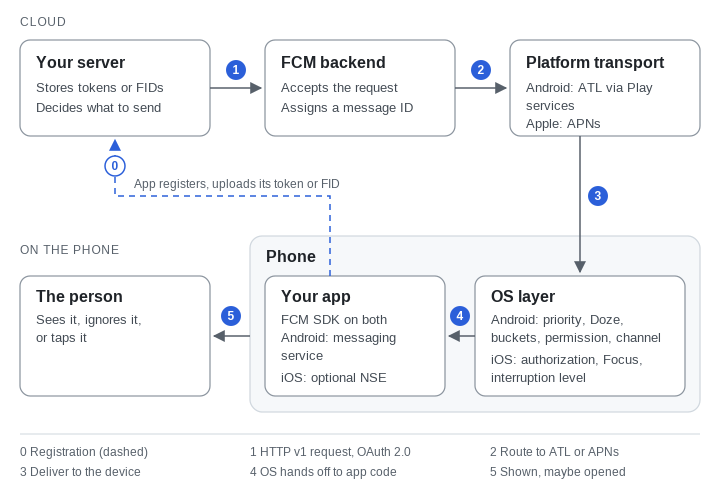
Your app. At startup it registers with the push service, gets an identifier for this install, and uploads it to your server (step 0). If that upload fails, nothing else on this page matters.
Your server. Apple calls it the “provider server”. It stores identifiers, decides what to send and when, and calls the push service: the FCM HTTP v1 API, or APNs directly for Apple devices.
The push service. FCM is a backend that accepts requests and assigns a message ID, plus a transport per platform: the Android transport layer (ATL) in Google Play services, APNs for Apple devices, and web push for browsers. Web push is a different protocol (RFC 8030), covered elsewhere.
The phone’s OS. Android and iOS decide whether the message wakes the device, whether your app may show anything at all, and how loudly. It is also the hop that sends nothing back to your server.
The person. They see it, ignore it, or tap it. The tap is the easiest of these to measure, which is why open counts say little about delivery.
Tokens: where they come from and why they change
A push identifier is the address of one app install on one device. It is not a user ID: one person in São Paulo with a phone and a tablet has two, and the same phone has a different one for each of your apps (Apple states this outright for APNs device tokens).
FCM registration tokens (and the move to installation IDs)
FCM is in the middle of a change. Firebase’s registration guide says FCM “is transitioning from registration tokens to a registration system based on Firebase Installation IDs (FIDs)”, with both patterns fully supported for now. The REST reference (updated Sep 8, 2026) marks the token target as deprecated in favor of fid, and says that during the transition token also accepts an FID.
On Android, you opt in with the manifest flag firebase_messaging_installation_id_enabled and receive the FID in FirebaseMessagingService.onRegistered(). On iOS, set FirebaseMessagingInstallationIdEnabled = YES in Info.plist. The old onNewToken() and getToken() path still works but is marked deprecated.
If your database has a column called fcm_token, nothing breaks today. We would still plan the rename now, because “token” is about to mean two different things in your codebase.
APNs device tokens
On Apple platforms the app calls registerForRemoteNotifications() on every launch and receives a device token in application(_:didRegisterForRemoteNotificationsWithDeviceToken:). Apple’s advice is blunt: never cache device tokens locally, and ask the system for a fresh one each time. When you use FCM on iOS, the FCM SDK maps the APNs token to the FID for you through method swizzling; with swizzling off, or in a SwiftUI app, you set apnsToken yourself.
When tokens rotate
| Event | FCM on Android (FID or token) | APNs device token |
|---|---|---|
| App restored to a new device | New identifier | New token (new device, or restore from backup) |
| App uninstalled and reinstalled | New identifier | Old token stops working (“app removed”) |
| User clears app data | New identifier | (no equivalent) |
| OS reinstalled | (not documented) | New token |
| Long inactivity | Registration expires after 270 days; FIS may delete the FID at the same threshold | No 270-day expiry |
Sources: Firebase Android client guide, Manage Firebase installations, Best practices for FCM registration management; Apple’s Registering your app with APNs and the APNs Metrics guide.
Firebase’s advice: store each identifier with a timestamp, refresh the timestamp on every upload, and treat registrations as stale when the device hasn’t connected for over a month. When a send returns UNREGISTERED (404), or INVALID_ARGUMENT (400) for a payload you know is valid, delete that registration. APNs says the same with 410 and Unregistered or ExpiredToken. This is about devices that no longer connect, not people who stopped tapping.
Server to FCM: the HTTP v1 request
The HTTP v1 API authenticates with a short-lived OAuth 2.0 access token minted from a service account, with the scope https://www.googleapis.com/auth/firebase.messaging. On Google Cloud, Application Default Credentials handle it; elsewhere you point GOOGLE_APPLICATION_CREDENTIALS at a service account JSON file and let a Google auth library mint the token. The token goes in an Authorization: Bearer <access_token> header.
Every send is one POST to https://fcm.googleapis.com/v1/projects/{project_id}/messages:send. Here is the single-device request exactly as Firebase documents it:
POST https://fcm.googleapis.com/v1/projects/myproject-b5ae1/messages:send HTTP/1.1
Content-Type: application/json
Authorization: Bearer ya29.ElqKBGN2Ri_Uz...HnS_uNreA

{
  "message":{
    "token":"bk3RNwTe3H0:CI2k_HHwgIpoDKCIZvvDMExUdFQ3P1...",
    "notification":{
      "body":"This is an FCM notification message!",
      "title":"FCM Message"
    }
  }
}
If your app registers with FIDs, the REST reference lets you put the FID in
fidinstead oftoken. During the transition,tokenaccepts an FID too.
On success, FCM returns a JSON object with one field, name, in the form projects/*/messages/{message_id}. That is an acceptance receipt, nothing more: FCM validated the request and queued it.
The message object in brief: notification is the cross-platform title and body; data is your own map of UTF-8 strings (keys such as from or anything starting with google. are reserved); android, apns and webpush hold platform overrides; the target is exactly one of token, fid, topic or condition.
The errors you’ll see most at this hop:
| Error | HTTP | Meaning | What to do |
|---|---|---|---|
INVALID_ARGUMENT |
400 | Bad field or bad target | Fix the payload; if the payload is valid, drop the registration |
UNREGISTERED |
404 | App account no longer registered | Delete the registration |
SENDER_ID_MISMATCH |
403 | Credentials belong to a different sender | Check the Firebase project |
QUOTA_EXCEEDED |
429 | Overall, per-device or per-topic rate limit | Back off; Firebase says start at 1 minute for overall and topic limits |
UNAVAILABLE |
503 | FCM overloaded | Retry with exponential backoff, honor Retry-After |
INTERNAL |
500 | Unknown error | Retry with backoff |
Our FCM HTTP v1 guide covers token caching, retries and the full error list. One date for your calendar: Firebase says device group names are deprecated and will be removed on Sep 29, 2027.
FCM to APNs for iOS, and sending to APNs directly
Through FCM. You upload an APNs authentication key in the Firebase console (Settings > General, then the Cloud Messaging tab), for development, production or both, together with its Key ID. Your server then sends the same v1 request it sends for Android, and FCM forwards the message to APNs. Firebase’s own “Sends” metric counts a message once it is “successfully passed to a third-party service like APNs”, so an iOS “send” in FCM means “handed to Apple”. If the key is missing or invalid, FCM returns THIRD_PARTY_AUTH_ERROR (HTTP 401).
The apns block of the v1 message carries APNs headers and the aps payload. Two details matter on day one. The apns-priority header is 10 (send now, the default), 5 (send based on the device’s power state) or 1 (prioritize power and don’t wake the device); Apple says 5 and 1 may be grouped and delivered in bursts. And FCM only allows apns-priority: 5 for data-only messages to iOS.
Directly. Apple’s side of the same hop:
| Item | Value |
|---|---|
| Transport | HTTP/2 over TLS 1.2 or later |
| Hosts | api.push.apple.com:443 (production), api.sandbox.push.apple.com:443 (development); port 2197 also works |
| Path | POST /3/device/<device_token> |
| Auth | authorization: bearer <JWT>, signed with ES256; header kid = your 10-character Key ID, claim iss = your 10-character Team ID, plus iat |
| Key headers | apns-topic (usually the bundle ID), apns-push-type (for example alert), apns-priority, apns-expiration |
| Payload limit | 4 KB (4,096 bytes) for a regular notification |
The JWT has two timing rules: if iat is more than one hour old, APNs returns ExpiredProviderToken (403); mint new tokens more than once every 20 minutes and you get TooManyProviderTokenUpdates (429). Other reasons you’ll meet: BadDeviceToken (400; Apple says to check that the token matches the environment), PayloadTooLarge (413) and Unregistered (410).
Which path? Shipping Android and iOS, FCM gives you one API and one identifier per install, at the cost of one more party (with its own errors) between you and Apple. Shipping only on Apple platforms, direct APNs removes a dependency. We found no latency figure from Firebase for the FCM-to-APNs hop, so we won’t guess at one.
On the device: Android
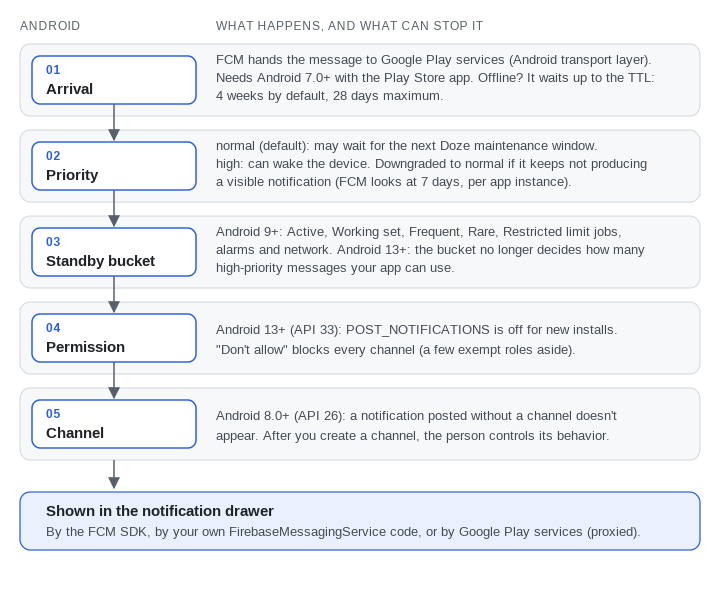
FCM on Android needs Android 7.0 or higher with the Google Play Store app installed. If the device is offline, FCM keeps the message for its time to live: four weeks by default, 28 days (2,419,200 seconds) at most. Then the OS applies four checks, and none of them shows up in the response your server received.
Message priority and Doze
Normal priority is the default. It arrives immediately on an awake device, but in Doze it may wait. Doze (Android 6.0 and higher) suspends network access and defers work to maintenance windows that come less often the longer the phone sits unused.
High priority lets FCM wake the device and run limited processing; Firebase recommends it for user-visible notifications such as chat messages. The catch: if high-priority messages keep not producing a visible notification, FCM may downgrade them to normal, judging each app account over 7 days. On the device, compare getPriority() with getOriginalPriority() to see it happen.
onMessageReceived() gets “several seconds” to show the notification; slower work, such as downloading an image, belongs in a WorkManager job.
App Standby buckets
Since Android 9 (API 28), each app sits in one of five buckets based on recent use: Active, Working set, Frequent, Rare and Restricted. Lower buckets get stricter limits on jobs, alarms and, in Rare, network access. On Android 13, an app unused for 8 days can land in Restricted (45 days on Android 12), and manufacturers can set their own rules.
What this means for push: from Android 13, Android’s docs say the bucket no longer decides how many high-priority FCM messages an app can receive. It still limits the work your app does after a message arrives, so a notification that depends on a background fetch is more fragile in Rare or Restricted.
Notification channels and the POST_NOTIFICATIONS permission (API 33+)
Since Android 8.0 (API 26), every notification needs a channel. Post one without a channel and, in Android’s words, the notification “doesn’t appear and the system logs an error”. Once a channel exists, the person controls its importance and sound, and you can’t change them from code.
Android 13 (API 33) added the POST_NOTIFICATIONS runtime permission. On new installs, notifications are off until the person grants it, and “Don’t allow” blocks every channel apart from a few exempt roles. If your app targets 12L or lower, one “Don’t allow” means no new prompt until a reinstall or a target SDK update. The FCM SDK declares the permission, but asking is your job; our Android push guide covers prompt timing and channel design.
On the device: iOS
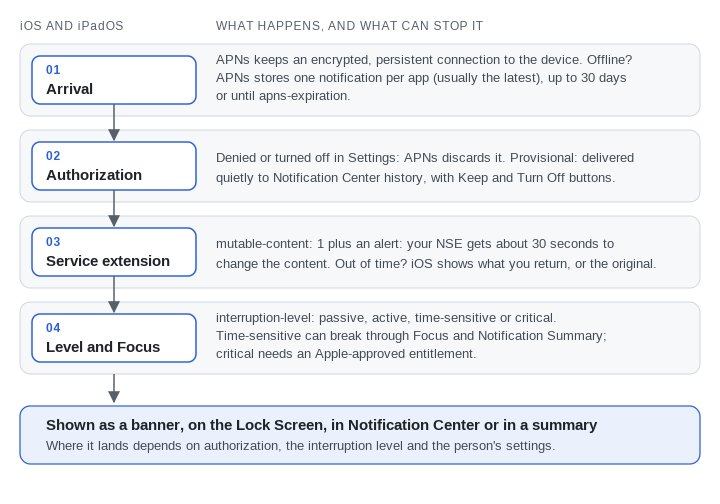
APNs keeps a persistent, encrypted connection to each device. If the device is offline, APNs stores the notification and tries again later, but it keeps only one notification per app (usually the latest), for 30 days or until your apns-expiration, whichever comes first.
Authorization (standard, provisional)
The first time your app calls requestAuthorization(options:), iOS shows the prompt and records the answer; later calls don’t prompt again. When notifications are disabled for your app in Settings, APNs discards them, and Apple’s Metrics dashboard counts them as “Discarded - Disabled”.
Provisional authorization (the .provisional option) skips the prompt. Notifications arrive quietly in Notification Center history, with no sound, banner or Lock Screen entry, plus Keep and Turn Off buttons. It suits a recipe or news digest app whose first notifications can prove their worth. More in our iOS push guide.
Interruption levels and Focus
Since iOS 15, the aps payload can carry an interruption-level: passive (added to the list, no sound or screen wake), active (presented immediately, can play a sound), time-sensitive or critical. Time-sensitive notifications can break through Focus and Notification Summary, and the person can turn that ability off. Critical alerts sound even when the mute switch is on and need an entitlement Apple must approve.
relevance-score (0 to 1) picks which notification is featured in a summary, and filter-criteria decides whether one shows in the current Focus. Our opinion: a daily Japanese lesson reminder from a language-learning app is active, not time-sensitive. More in the interruption level entry.
Notification Service Extension
A Notification Service Extension (NSE) runs before iOS shows an alert, if the payload has "mutable-content": 1 and an alert with a title, subtitle or body. Your didReceive(_:withContentHandler:) method gets about 30 seconds to change the content (Apple’s example decrypts it). Out of time, iOS calls serviceExtensionTimeWillExpire(); if you never call the completion handler, the original content is shown.
The NSE doesn’t run when alerts are disabled, or for sound-only or badge-only payloads. It is also where FCM’s BigQuery delivery export for iOS alerts must be called.
What “delivered” means, and what it doesn’t
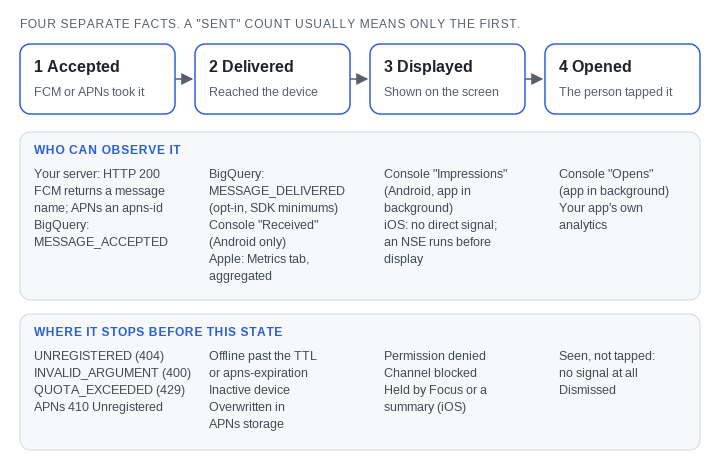
There are four separate facts, and each has a different witness:
- Accepted. FCM returned a message
name, or APNs returned HTTP 200 with anapns-id. BigQuery logs this asMESSAGE_ACCEPTED. It says nothing about the device. - Delivered. The message reached the device. FCM’s BigQuery export has a
MESSAGE_DELIVEREDevent, off by default; you enable it in the client SDK (Android 20.1.0+, iOS 8.6.0+, Web 12.14.0+). The console’s “Received” count and the FCM Data API are Android only, and Data API figures arrive up to 5 days late. - Displayed. The console’s “Impressions” count covers Android notification messages shown while the app is in the background. iOS has no direct equivalent.
- Opened. The console’s “Opens” covers notifications received while the app was in the background. Your own analytics can cover the rest.
One Android wrinkle: on Android 10 and higher, Google Play services displays some high-priority notifications itself (“proxied”), and Firebase warns this can lower reported delivery metrics by up to 15%.
APNs gives your server no per-notification delivery receipt; the HTTP 200 means accepted. Apple’s Push Notifications Console has a Metrics tab with aggregated, rounded counts of delivered, stored and discarded notifications, and a delivery log per notification only in the development environment (through the apns-unique-id response header).
So when a report shows a “sent” number, ask which of the four states it counts. If it is only the first, it tells you nothing about phones.
Where things fail: a hop-by-hop table
| Hop | What fails | Signal you get | Read more |
|---|---|---|---|
| App registers | No Play services; registration not uploaded; identifier rotated after restore, reinstall or data clear | New value in onRegistered() or the messaging delegate; otherwise nothing until a send fails |
Firebase registration best practices |
| Server to FCM | Bad payload, wrong project, gone registration, rate limits | INVALID_ARGUMENT 400, SENDER_ID_MISMATCH 403, UNREGISTERED 404, QUOTA_EXCEEDED 429, UNAVAILABLE 503 |
FCM HTTP v1 guide |
| FCM to APNs | APNs key missing or invalid (development or production) | THIRD_PARTY_AUTH_ERROR 401 |
Firebase Apple client setup |
| Server to APNs (direct) | Stale or over-refreshed JWT, wrong environment, payload over 4 KB, uninstalled app | ExpiredProviderToken 403, TooManyProviderTokenUpdates 429, BadDeviceToken 400, PayloadTooLarge 413, Unregistered 410 |
Apple: Handling notification responses |
| Transport to device | Offline past the TTL or apns-expiration; older notification overwritten in APNs storage |
Data API “dropped” outcomes (Android); APNs Metrics stored and discarded | Firebase: Understanding message delivery |
| Android OS | Normal priority waits in Doze; high priority downgraded; app in a low standby bucket | getOriginalPriority() vs getPriority(); Data API deprioritization percentage |
Android push guide |
| Android display | No POST_NOTIFICATIONS grant; no channel; channel turned off |
None on your server | Android notification permission docs |
| iOS display | Authorization denied or turned off; NSE timed out; held by Focus or a summary | APNs Metrics “Discarded - Disabled”; nothing for Focus | iOS push guide |
| The person | Ignored or dismissed | None; only opens are measured | Not delivered checklist |
What Oricato does here
Early access · launching soon. Oricato sends mobile push through FCM HTTP v1, and reaches iOS through FCM to APNs with the APNs key you upload, so it uses the same pipes described above and doesn’t change how Android or iOS treat a message. On top of them, it delivers at each person’s local time and reports Sent, Delivered (confirmed by the Oricato SDK on the device) and Opened as separate numbers, by country, language and local hour. Web push and email go out from the same composer. More on mobile push and how Oricato works.
Glossary
- FCM: Firebase Cloud Messaging
- APNs: Apple Push Notification service
- FCM token: the per-install identifier, now moving to FIDs
- Notification Service Extension: edits an iOS alert before display
- Interruption level: how strongly iOS presents a notification
Sources
It is based on Firebase, Android Developers and Apple Developer documentation and IETF RFC 8030, all read on Oct 16, 2026. The HTTP example is copied from Firebase’s documentation and was not run by us.
- Firebase: FCM architectural overview (last updated Oct 15, 2026), accessed Oct 16, 2026
- Firebase: Best practices for FCM registration management (last updated Oct 15, 2026), accessed Oct 16, 2026
- Firebase: Manage Firebase installations (last updated Oct 15, 2026), accessed Oct 16, 2026
- Firebase: Set up an FCM client app on Android (last updated Oct 15, 2026), accessed Oct 16, 2026
- Firebase: Set up an FCM client app on Apple platforms (last updated Oct 15, 2026), accessed Oct 16, 2026
- Firebase: Send a message using FCM HTTP v1 API (last updated Oct 15, 2026), accessed Oct 16, 2026
- Firebase: Send messages (Admin SDK) (last updated Oct 15, 2026), accessed Oct 16, 2026
- FCM REST reference: projects.messages (last updated Sep 8, 2026), accessed Oct 16, 2026
- FCM REST reference: ErrorCode (last updated Feb 3, 2026), accessed Oct 16, 2026
- Firebase: Setting the lifespan of a message (last updated Oct 15, 2026), accessed Oct 16, 2026
- Firebase: Set and manage Android message priority (last updated Oct 15, 2026), accessed Oct 16, 2026
- Firebase: Understanding message delivery (last updated Oct 15, 2026), accessed Oct 16, 2026
- Android Developers: Optimize for Doze and App Standby (last updated Aug 18, 2026), accessed Oct 16, 2026
- Android Developers: App Standby Buckets (last updated Oct 1, 2026), accessed Oct 16, 2026
- Android Developers: Power management resource limits (last updated May 19, 2026), accessed Oct 16, 2026
- Android Developers: Notification runtime permission (last updated Oct 1, 2026), accessed Oct 16, 2026
- Android Developers: Create and manage notification channels (last updated Oct 1, 2026), accessed Oct 16, 2026
- Apple: Setting up a remote notification server, accessed Oct 16, 2026
- Apple: Registering your app with APNs, accessed Oct 16, 2026
- Apple: Sending notification requests to APNs, accessed Oct 16, 2026
- Apple: Establishing a token-based connection to APNs, accessed Oct 16, 2026
- Apple: Handling notification responses from APNs, accessed Oct 16, 2026
- Apple: Generating a remote notification, accessed Oct 16, 2026
- Apple: Asking permission to use notifications, accessed Oct 16, 2026
- Apple: UNNotificationInterruptionLevel, with the timeSensitive and critical cases, accessed Oct 16, 2026
- Apple: Modifying content in newly delivered notifications, accessed Oct 16, 2026
- Apple: Viewing the status of push notifications using Metrics and APNs, accessed Oct 16, 2026
- IETF RFC 8030: Generic Event Delivery Using HTTP Push, accessed Oct 16, 2026
Frequently asked questions
Do push notifications work without Google Play services?
What is a push token?
Keep reading
All guides
FCM HTTP v1 API: auth, payloads, errors and retries
A server-side guide to the FCM HTTP v1 API: OAuth tokens, message anatomy, Android and APNs overrides, every error code with the right action, and backoff.
Push notifications not delivered: a troubleshooting tree
Push notifications not arriving? Walk a decision tree from server response to the lock screen: tokens, payloads, Android power rules, iOS Focus and more.