Flutter push notifications with FCM: a production setup
Set up Flutter push notifications with FCM for Android and iOS: APNs key, background handler, foreground display, token refresh, deep links and debugging.
Oricato Team Published 13 min read

You have firebase_messaging installed, a token printed in the console, and a test message showing up on an Android emulator. That’s about where most tutorials stop. A production Flutter app still needs six more things: an APNs key in Firebase, a top-level background handler, a way to show notifications while the app is open, the Android 13 permission and a channel, a registration ID that your server keeps fresh, and one routing function for taps from every app state. This guide covers each one, then gives you a debugging checklist.
What this guide is based on. We have not run this setup on a device or emulator for this article, so there is no “Tested on” box. Every step and code block follows the official documentation listed under Sources, read on Oct 16, 2026. Each code block says which page and package version it follows.
If you’re comparing SDK options before you write code, start at push SDKs for Android, iOS and Flutter. The rest of this page assumes you’re wiring FCM yourself.
Prerequisites and versions
Three packages do the work. These are the versions current on pub.dev on Oct 16, 2026:
| Package | Version | Published | Needs |
|---|---|---|---|
firebase_core |
5.0.0 | Oct 15, 2026 | Flutter 3.27+, Dart 3.6+ |
firebase_messaging |
17.0.0 | Oct 15, 2026 | Flutter 3.27+, Dart 3.6+, firebase_core ^5.0.0 |
flutter_local_notifications |
22.3.2 | Oct 12, 2026 | Flutter 3.38.1+, Dart 3.10+ |
So the floor for this stack is Flutter 3.38.1. On the platform side, the Firebase Flutter setup page asks for iOS 15 or later and Android API level 24 or higher, and the firebase_messaging 17.0.0 changelog confirms the move to minSdk 24 and the Firebase Apple SDK 13.
Two things changed on Oct 15, 2026, and they matter for the token section later:
firebase_messaging17.0.0 added Firebase Installation ID (FID) registration:register(),onRegisteredandonUnregistered.- In the same release,
getToken()andonTokenRefreshare marked@Deprecated. The Firebase docs now say the registration-token APIs are on their way out and recommend FIDs instead.
If you’d rather not adopt a release that is one day old, firebase_messaging 16.7.0 (Sep 14, 2026) with firebase_core 4.x still uses the token APIs. Everything in this guide applies to both, except the registration code, where we show both paths.
Project setup with the FlutterFire CLI
Install the Firebase CLI, sign in, then install the FlutterFire CLI (1.4.1 at the time of writing):
firebase login
dart pub global activate flutterfire_cli
From your project root, add the three packages and run the configuration workflow:
flutter pub add firebase_core firebase_messaging flutter_local_notifications
flutterfire configure
flutterfire configure asks which platforms you support, creates one Firebase app per platform, and writes lib/firebase_options.dart. Re-run it whenever you add a platform or a Firebase product. Our examples use a fictional language-learning app with the bundle ID com.lingora.app.
Android setup
Android needs three things beyond the Firebase files: the permission on API 33+, a channel, and an icon. First, two Gradle settings that flutter_local_notifications requires.
In android/app/build.gradle.kts, the plugin README asks for core library desugaring and a compileSdk of at least 35:
android {
    compileSdk = 36
    compileOptions {
        isCoreLibraryDesugaringEnabled = true
        sourceCompatibility = JavaVersion.VERSION_17
        targetCompatibility = JavaVersion.VERSION_17
    }
}

dependencies {
    coreLibraryDesugaring("com.android.tools:desugar_jdk_libs:2.1.4")
}
POST_NOTIFICATIONS on API 33+
Since Android 13 (API level 33), showing notifications is a runtime permission, and on a fresh install your app’s notifications are off until the user grants it. The FCM SDK already declares POST_NOTIFICATIONS in its manifest, so you only need to ask. FirebaseMessaging.instance.requestPermission() handles the Android 13 prompt as well as iOS.
Read the result carefully on Android. The Flutter receive docs note that on Android 13 and higher, authorizationStatus of denied can mean “denied” or “not asked yet”; you have to track whether you’ve already shown the prompt. If your app still targets API 32 or lower, the system shows the prompt itself when you create your first channel, and a single “Don’t allow” means no second prompt until reinstall or a target-SDK update.
When to ask is a product decision. Our guide to the push permission prompt covers timing and pre-prompts.
A default notification channel
On Android 8.0 and higher every notification belongs to a notification channel. If a message names no channel, or names one your app hasn’t created, FCM falls back to the channel set in your manifest, and if you set none, to a default FCM channel with basic settings. Create your own channel and point FCM at it:
<!-- android/app/src/main/AndroidManifest.xml, inside <application> -->
<meta-data
    android:name="com.google.firebase.messaging.default_notification_channel_id"
    android:value="@string/default_notification_channel_id" />
<!-- android/app/src/main/res/values/strings.xml -->
<resources>
<string name="default_notification_channel_id">lessons</string>
</resources>Pick the importance carefully the first time. Android’s channel docs are blunt: after you create a channel, you can’t change its notification behaviors; only the user can. If you ship a channel at default importance and later want heads-up banners, you need a new channel ID.
Notification icon
If you set no default icon and the payload sets none, Android shows your app icon rendered in white, which for most launcher icons is a white square. Add a white-on-transparent drawable and declare it, along with an accent color:
<meta-data
    android:name="com.google.firebase.messaging.default_notification_icon"
    android:resource="@drawable/ic_stat_notify" />
<meta-data
    android:name="com.google.firebase.messaging.default_notification_color"
    android:resource="@color/notification_accent" />
One release-build trap from the flutter_local_notifications README: R8 can strip drawable resources it thinks are unused, including your notification icon. The README warns that notifications can break or silently never appear when that happens, so list the icon in a keep.xml file.
iOS setup
iOS needs more console work than code. Our iOS push setup guide goes deeper on the APNs side, including the Notification Service Extension for images.
Push Notifications capability and Background Modes
Open ios/Runner.xcworkspace in Xcode. Under Signing & Capabilities on the Runner target, add Push Notifications, then add Background Modes and check Background fetch and Remote notifications. Apple’s “Registering your app with APNs” page adds one more step outside Xcode: the App ID in your developer account must have the push notification service enabled.
The FlutterFire plugin relies on method swizzling on Apple platforms. The Firebase docs say that without it, FCM registration handling won’t work, so leave it on.
If you use flutter_local_notifications on iOS too, its README asks for one line in application(_:didFinishLaunchingWithOptions:):
// ios/Runner/AppDelegate.swift
UNUserNotificationCenter.current().delegate = self as? UNUserNotificationCenterDelegate
Upload the APNs auth key to Firebase
FCM delivers to iPhones through APNs, so Firebase needs your APNs authentication key. Create the key in your Apple developer account. Apple gives you a .p8 file and a 10-character Key ID; you also need your 10-character Team ID.
In the Firebase console, go to Settings > General > Cloud Messaging, find APNs authentication key under your iOS app, and upload the key as a development key, a production key, or both (at least one is required). Apple’s current docs describe team-scoped keys restricted to either Sandbox or Production, at most two per environment (older keys that work in both are still supported). When FCM can’t authenticate to APNs, sends fail with THIRD_PARTY_AUTH_ERROR (HTTP 401), and the error reference tells you to check both your development and production credentials.
Real device required for APNs tokens
The Firebase Flutter setup page lists “Set up a physical Apple device” as a prerequisite for Cloud Messaging on Apple platforms. The receive docs also note the iOS Simulator does not display images in push notifications.
On iOS you’ll also see this warning in the Firebase docs: since the iOS SDK 10.4.0, the APNs token must be available before you make FCM plugin API requests, and it is not guaranteed to have arrived yet. Check getAPNSToken() first, as the registration code below does.
Finally, enable FID registration in ios/Runner/Info.plist, and the Android equivalent in the manifest:
<!-- ios/Runner/Info.plist -->
<key>FirebaseMessagingInstallationIdEnabled</key>
<true/>
<!-- AndroidManifest.xml, inside <application> -->
<meta-data
android:name="firebase_messaging_installation_id_enabled"
android:value="true" />Handling messages in each app state
FCM has two message types. A notification message carries notification keys (title, body) that the FCM SDK displays for you when the app is in the background. A data message carries only your own key-value pairs and your code handles it. Both are capped at 4,096 bytes, or 1,000 characters from the Firebase console composer.
The Flutter docs define three app states: foreground (open and in use), background (open but minimized), and terminated (device locked or app not running). Which API fires depends on the state, the platform and the message type:
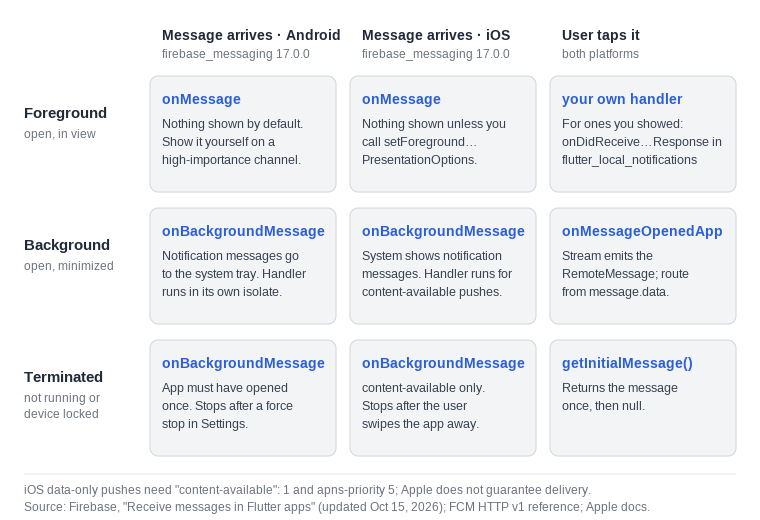
| App state | Message arrives (Android) | Message arrives (iOS) | User taps it |
|---|---|---|---|
| Foreground | onMessage; nothing is shown by default |
onMessage; nothing is shown unless you set presentation options |
Your own tap handler (for notifications you showed) |
| Background | Notification messages go to the system tray; onBackgroundMessage runs in its own isolate |
The system shows notification messages; onBackgroundMessage for messages with content-available |
onMessageOpenedApp |
| Terminated | onBackgroundMessage (app must have been opened once; not after a force stop from Settings) |
onBackgroundMessage for content-available messages; not after the user swipes the app away |
getInitialMessage() |
FirebaseMessaging.onMessage
onMessage emits each RemoteMessage that arrives while your app is in the foreground. App state and BuildContext are available here, so this is where you show the notification yourself (next section).
onBackgroundMessage (top-level function, @pragma(‘vm:entry-point’))
The background handler has three hard rules from the docs. It must be a top-level function, not a class method. It must not be anonymous. On Flutter 3.3.0 and later it needs @pragma('vm:entry-point'), or release-mode tree shaking may remove it, which is why handlers that work in debug sometimes go silent in release.
// lib/main.dart
import 'package:firebase_core/firebase_core.dart';
import 'package:firebase_messaging/firebase_messaging.dart';
import 'package:flutter/foundation.dart';
import 'package:flutter/material.dart';

import 'firebase_options.dart';
import 'notifications.dart'; // setUpNotifications()

@pragma('vm:entry-point')
Future<void> _firebaseMessagingBackgroundHandler(RemoteMessage message) async {
  // Initialize Firebase before using any other Firebase service here.
  await Firebase.initializeApp(options: DefaultFirebaseOptions.currentPlatform);
  debugPrint('Handling a background message: ${message.messageId}');
}

Future<void> main() async {
  WidgetsFlutterBinding.ensureInitialized();
  await Firebase.initializeApp(options: DefaultFirebaseOptions.currentPlatform);
  FirebaseMessaging.onBackgroundMessage(_firebaseMessagingBackgroundHandler);
  await setUpNotifications(); // defined in the next section
  runApp(const LinguaApp());
}
On Android the handler runs in a separate isolate, so it can’t touch your widgets or in-memory state. It can make HTTP requests, write to local storage and call other plugins. Keep it short: the docs warn the OS may kill the process if work runs past 30 seconds.
getInitialMessage and onMessageOpenedApp
If the app was terminated, getInitialMessage() returns the RemoteMessage whose tap launched it, once; later calls return null. If the app was in the background, onMessageOpenedApp emits it. Handle both, or taps from one state will land on your home screen.
One gap from the API reference: on Android, if the message arrived in the foreground and the user tapped the notification later, getInitialMessage() returns null. That notification is the one you displayed with flutter_local_notifications, so its tap comes through that plugin.
Showing notifications in the foreground
The Firebase docs are explicit: notification messages that arrive while the app is in the foreground show nothing by default, on both platforms. The fix differs by platform.
On iOS, change the presentation options. The API reference adds a detail most tutorials miss: options set to true persist. Remove the call later and they stay on; to turn them off you have to call it again with alert: false.
On Android, create a high-importance channel and post the notification yourself from onMessage. The flutter_local_notifications 22.x API uses named parameters for initialize and show, which older tutorials don’t.
// lib/notifications.dart
import 'dart:convert';

import 'package:firebase_messaging/firebase_messaging.dart';
import 'package:flutter/foundation.dart';
import 'package:flutter_local_notifications/flutter_local_notifications.dart';

import 'routing.dart'; // openFromData(), see "Deep links from a tap"

const AndroidNotificationChannel lessonsChannel = AndroidNotificationChannel(
  'lessons', // same ID as default_notification_channel_id
  'Lesson reminders',
  description: 'Daily lesson and streak reminders',
  importance: Importance.high,
);

final FlutterLocalNotificationsPlugin localNotifications =
    FlutterLocalNotificationsPlugin();

Future<void> setUpNotifications() async {
  await localNotifications
      .resolvePlatformSpecificImplementation<
          AndroidFlutterLocalNotificationsPlugin>()
      ?.createNotificationChannel(lessonsChannel);

  await localNotifications.initialize(
    settings: const InitializationSettings(
      android: AndroidInitializationSettings('ic_stat_notify'),
      // Ask for permission later, through FirebaseMessaging.requestPermission().
      iOS: DarwinInitializationSettings(
        requestAlertPermission: false,
        requestBadgePermission: false,
        requestSoundPermission: false,
      ),
    ),
    onDidReceiveNotificationResponse: (NotificationResponse response) {
      final String? payload = response.payload;
      if (payload != null && payload.isNotEmpty) {
        openFromData(jsonDecode(payload) as Map<String, dynamic>);
      }
    },
  );

  // iOS: let the system show notification messages while the app is open.
  await FirebaseMessaging.instance.setForegroundNotificationPresentationOptions(
    alert: true,
    badge: true,
    sound: true,
  );

  // Android: show notification messages ourselves while the app is open.
  FirebaseMessaging.onMessage.listen((RemoteMessage message) {
    final RemoteNotification? notification = message.notification;
    final AndroidNotification? android = message.notification?.android;
    if (notification != null && android != null && !kIsWeb) {
      localNotifications.show(
        id: notification.hashCode,
        title: notification.title,
        body: notification.body,
        notificationDetails: NotificationDetails(
          android: AndroidNotificationDetails(
            lessonsChannel.id,
            lessonsChannel.name,
            channelDescription: lessonsChannel.description,
            icon: 'ic_stat_notify',
          ),
        ),
        payload: jsonEncode(message.data),
      );
    }
  });
}
The android != null check keeps iOS from showing the same message twice, once from the presentation options and once from the local plugin. The payload carries message.data as JSON so a tap can route the same way an FCM tap does.
Tokens: get, refresh, send to your server
Your server needs one ID per app install to target it. As of firebase_messaging 17.0.0 that ID is the Firebase Installation ID. The FCM HTTP v1 API has a new fid field next to the now-deprecated token field, and during the transition the token field also accepts an FID.
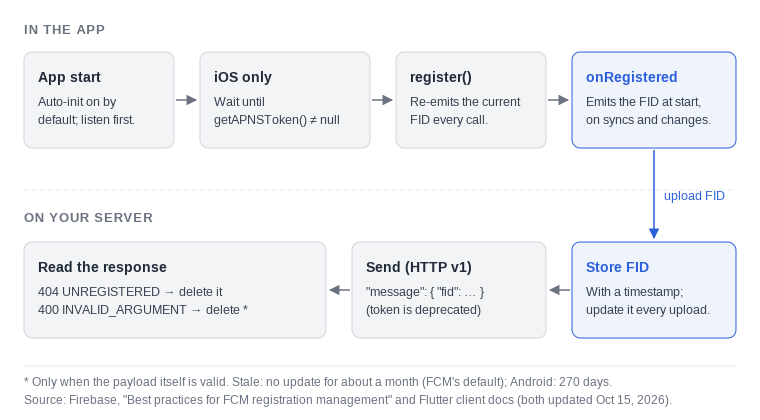
With auto-init on (the default), the SDK registers at startup and onRegistered emits the FID on routine syncs and whenever it changes. Subscribe before you call register(), which re-emits the current FID:
// lib/push_registration.dart
import 'dart:async';

import 'package:firebase_messaging/firebase_messaging.dart';
import 'package:flutter/foundation.dart';

Future<void> registerForPush(
  Future<void> Function(String fid) sendToServer,
) async {
  final FirebaseMessaging messaging = FirebaseMessaging.instance;

  final NotificationSettings settings = await messaging.requestPermission();
  debugPrint('Permission: ${settings.authorizationStatus}');

  // Apple platforms: the APNs token must exist before other FCM calls.
  if (defaultTargetPlatform == TargetPlatform.iOS) {
    String? apnsToken = await messaging.getAPNSToken();
    for (int i = 0; apnsToken == null && i < 5; i++) {
      await Future<void>.delayed(const Duration(seconds: 1));
      apnsToken = await messaging.getAPNSToken();
    }
    if (apnsToken == null) return; // try again on the next app start
  }

  messaging.onRegistered.listen((String fid) {
    unawaited(sendToServer(fid)); // server stores fid + timestamp
  }).onError((Object err) {
    debugPrint('FCM registration failed: $err');
  });

  await messaging.register();
}
Still on 16.x? The deprecated path is getToken() plus onTokenRefresh, which fires at each app start and when a new token is generated. Don’t mix the two: the Firebase docs warn against using FID APIs and registration-token APIs at the same time.
final String? fcmToken = await FirebaseMessaging.instance.getToken();
FirebaseMessaging.instance.onTokenRefresh.listen((String token) {
  // Send the new token to your server.
}).onError((Object err) {
  // Error getting token.
});
On the server, the registration-management guide asks for three habits. Store each ID with a timestamp and update the timestamp on every upload. Treat a registration as stale after about a month without an update (FCM’s default; Android registrations expire after 270 days of inactivity).
Delete a registration when a send returns UNREGISTERED (HTTP 404), or INVALID_ARGUMENT (HTTP 400) when you’re sure the payload itself is valid. With legacy tokens there’s one more job: the client should re-upload its token about once a month, because the SDK doesn’t refresh tokens on routine syncs the way it does FIDs.
Deep links from a tap
A tap reaches your code through one of four doors: getInitialMessage() (cold start from an FCM notification), onMessageOpenedApp (from background), onDidReceiveNotificationResponse (a notification you showed while the app was running), and getNotificationAppLaunchDetails() (a notification you showed that later launched the app). Send all four into one function.
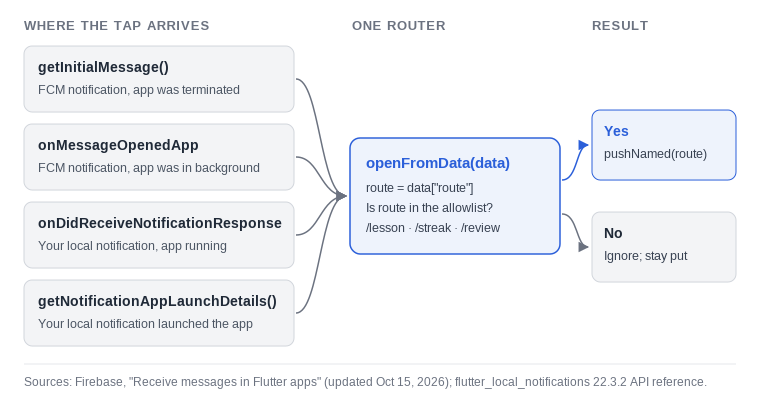
Put the destination in the message’s data, not in the visible text. FCM data values are strings, so a deep link payload for our language app looks like this:
{
  "message": {
    "fid": "FIREBASE_INSTALLATION_ID",
    "notification": {
      "title": "Tu lección de hoy está lista",
      "body": "Unidad 4: pedir en un restaurante"
    },
    "data": {
      "route": "/lesson",
      "lessonId": "es-a2-04"
    },
    "android": {
      "notification": { "channel_id": "lessons" }
    }
  }
}
The router checks the route against a list you control, because anyone who can send to your app can put any string in data:
// lib/routing.dart
import 'package:flutter/widgets.dart';

final GlobalKey<NavigatorState> navigatorKey = GlobalKey<NavigatorState>();
const Set<String> pushRoutes = {'/lesson', '/streak', '/review'};

void openFromData(Map<String, dynamic> data) {
  final Object? route = data['route'];
  if (route is! String || !pushRoutes.contains(route)) return;
  final NavigatorState? nav = navigatorKey.currentState;
  if (nav != null) {
    nav.pushNamed(route, arguments: data);
  } else {
    WidgetsBinding.instance.addPostFrameCallback((_) {
      navigatorKey.currentState?.pushNamed(route, arguments: data);
    });
  }
}
Then call the doors from your root widget’s initState, as the Firebase “Handling interaction” sample does, and pass navigatorKey to MaterialApp(navigatorKey: navigatorKey, ...):
// In your root widget's State. Needs dart:convert, firebase_messaging,
// flutter_local_notifications, notifications.dart and routing.dart.
Future<void> setupInteractedMessage() async {
  final RemoteMessage? initialMessage =
      await FirebaseMessaging.instance.getInitialMessage();
  if (initialMessage != null) openFromData(initialMessage.data);

  FirebaseMessaging.onMessageOpenedApp
      .listen((RemoteMessage m) => openFromData(m.data));

  final NotificationAppLaunchDetails? launch =
      await localNotifications.getNotificationAppLaunchDetails();
  final String? payload = launch?.notificationResponse?.payload;
  if ((launch?.didNotificationLaunchApp ?? false) &&
      payload != null && payload.isNotEmpty) {
    openFromData(jsonDecode(payload) as Map<String, dynamic>);
  }
}
Debugging checklist
Work down the list in order; each step rules out one layer. For delivery problems beyond the app (OEM battery savers, server errors, stale IDs), see push notifications not delivered.
Registration
-
onRegisteredemitted an FID (orgetToken()returned a token on 16.x), and your server has it with today’s timestamp. - iOS:
getAPNSToken()returns a value. If it staysnull, check the Push Notifications capability, the App ID’s push service, and that you’re on a physical device. - The app has been opened at least once since install. The docs list this as a precondition for receiving anything.
Delivery
- Send from the console first (Messaging > New campaign > Notifications > Send test message) with your FID or token and the app in the background. If this works and your server doesn’t, the problem is your request.
- Server errors:
THIRD_PARTY_AUTH_ERROR(401) means the APNs key is missing or doesn’t cover that environment;UNREGISTERED(404) means delete that registration;QUOTA_EXCEEDED(429) means back off, starting at 1 minute. - Payload under 4,096 bytes, and no
datakeys that FCM reserves (from,message_type, anything starting withgoogle.orgcm.).
Display
- Android 13+: permission granted. To reset it for a retest, Android’s docs give
adb shell pm revoke com.lingora.app android.permission.POST_NOTIFICATIONSplus the twoclear-permission-flagscommands foruser-setanduser-fixed. - Nothing in the foreground: expected until you add presentation options (iOS) or a local notification (Android).
- No heads-up banner on Android: the channel’s importance was fixed when it was first created. Use a new channel ID or reinstall.
- White square icon: no
default_notification_icon, or R8 stripped the drawable in release.
Background and taps
- Background handler silent in release only: missing
@pragma('vm:entry-point'), or the handler isn’t top-level. - iOS background data:
content-available: 1,apns-priority: 5, Background Modes > Remote notifications checked, and no more than a few per hour. - Nothing at all after the user swiped the app away (iOS) or force-stopped it in Settings (Android): the docs say messages resume only after the user reopens the app.
- Tap opens the home screen: one of the four tap doors isn’t wired, usually
getInitialMessage()orgetNotificationAppLaunchDetails().
For a data-only background message to iOS, FCM’s reference is specific: when the payload contains only data fields, only "apns-priority": "5" is allowed, and FCM’s default when you set nothing is 10.
{
  "message": {
    "fid": "FIREBASE_INSTALLATION_ID",
    "data": { "route": "/review", "deckId": "ja-n5-kana" },
    "apns": {
      "headers": { "apns-push-type": "background", "apns-priority": "5" },
      "payload": { "aps": { "content-available": 1 } }
    }
  }
}
For Doze and OEM battery settings, see the Android push notifications guide.
What Oricato does here
Early access · launching soon
Oricato is a push notification platform for app studios. Its Flutter plugin, oricato_push, sits on firebase_messaging and flutter_local_notifications and handles much of the wiring above: Android channels, showing data messages from the background isolate, taps including cold starts, and re-registering when the time zone, language or permission changes. Its method names match the Oricato Android and iOS SDKs, and it can forward to handlers your app already has. Check the Oricato Flutter SDK page for supported package versions before you move to firebase_messaging 17.0.0.
The platform sends mobile push, with web push and email (both Early access) in the same composer. You still need the Firebase, APNs and capability setup from this guide.
Request early access: oricato.com/request-access
Frequently asked questions
Why is onBackgroundMessage not called on iOS?
Do I need flutter_local_notifications?
Sources
- Get started with Firebase Cloud Messaging in Flutter apps (last updated 2026-10-15) · accessed Oct 16, 2026
- Receive messages in Flutter apps (last updated 2026-10-15) · accessed Oct 16, 2026
- Get started with Firebase in your Flutter project (last updated 2026-10-15) · accessed Oct 16, 2026
- Best practices for FCM registration management (last updated 2026-10-15) · accessed Oct 16, 2026
- Firebase Cloud Messaging message types (last updated 2026-10-15) · accessed Oct 16, 2026
- Set up a Firebase Cloud Messaging client app on Android (last updated 2026-10-15) · accessed Oct 16, 2026
- Receive messages in Android apps (last updated 2026-10-15) · accessed Oct 16, 2026
- Receive messages in Apple platform apps (last updated 2026-10-15) · accessed Oct 16, 2026
- FCM HTTP v1 API: projects.messages resource (last updated 2026-09-08) · accessed Oct 16, 2026
- FCM HTTP v1 API: projects.messages.send (last updated 2026-09-21) · accessed Oct 16, 2026
- FCM HTTP v1 API: ErrorCode (last updated 2026-02-03) · accessed Oct 16, 2026
- firebase_messaging 17.0.0 on pub.dev (published 2026-10-15) and its changelog · accessed Oct 16, 2026
- firebase_messaging 17.0.0 API reference: FirebaseMessaging class · accessed Oct 16, 2026
- firebase_messaging example app, lib/main.dart (main branch) · accessed Oct 16, 2026
- firebase_core 5.0.0 on pub.dev (published 2026-10-15) · accessed Oct 16, 2026
- flutter_local_notifications 22.3.2 on pub.dev (published 2026-10-12): README · accessed Oct 16, 2026
- flutter_local_notifications 22.3.2 API reference: FlutterLocalNotificationsPlugin · accessed Oct 16, 2026
- Android Developers: Notification runtime permission (last updated 2026-10-01) · accessed Oct 16, 2026
- Android Developers: Create and manage notification channels · accessed Oct 16, 2026
- Apple Developer: Registering your app with APNs · accessed Oct 16, 2026
- Apple Developer: Pushing background updates to your App · accessed Oct 16, 2026
- Apple Developer: Establishing a token-based connection to APNs · accessed Oct 16, 2026
Keep reading
All guides
Android push notifications: permission, channels and Doze
Android push in 2026: asking for POST_NOTIFICATIONS, designing channels, message priority, Doze, App Standby buckets and OEM battery managers.
iOS push notifications setup: APNs key, NSE, rich media
iOS push setup in Swift: capabilities, the APNs auth key, provisional permission, interruption levels and a Notification Service Extension for images.